Company Page Posts In Your Brand
Templates at 1200×627 for what a company page announces: open roles, launches, events, and results. Edit every layer to match your brand and download.
Free preview · No signup · ~10 seconds


Company Page Posts In Your Brand — in the editor
The real editor, start to finish — no signup needed to try it yourself.
Free preview · No signup · ~10 seconds
Your Page Speaks for the Company
Announcements, not selfies
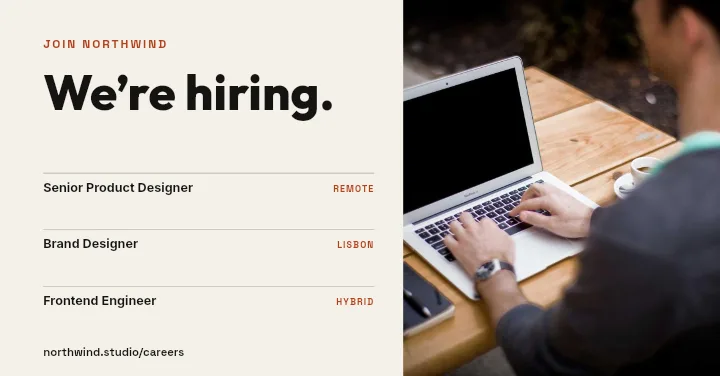
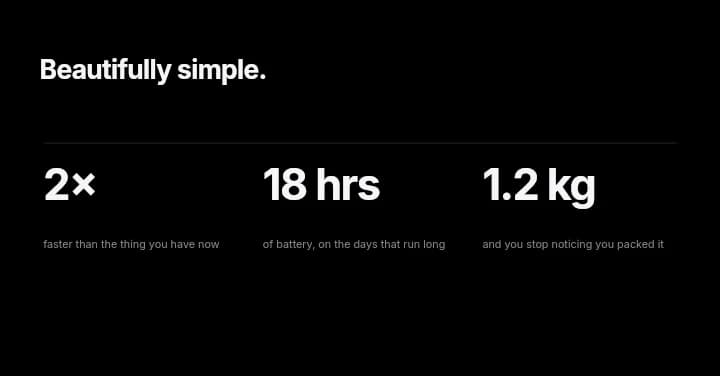
A company page publishes a different kind of post from a personal profile: hiring calls, product news, customer wins. The We're Hiring, Feature Trio, and Product Split Dark layouts are built for those.
Brand consistency
Set your brand colours and logo once in a layout, then reuse it for every post so the page looks like one company rather than several people's experiments.
Easy for colleagues to reuse
Because each part is an editable layer, a colleague can take last month's hiring post, change the role title, and publish it without design help.
Same reliable size
Company posts use 1200×627, which shows in full in the feed. The same file can be reused when you sponsor the post later.
Company Page Image Sizes
Company Post
1200 × 627
Shown uncropped in followers' feeds.
Company Page Cover
2256 × 382
The header across the top of the page.
Sponsored Single Image
1200 × 627
The same canvas, so posts can be promoted as-is.
How to Make a LinkedIn Company Post
Open the company post templates
The button opens Create on LinkedIn Company Post templates at 1200×627. Select a layout, or open a blank canvas instead.
Brand it
Place your logo, switch the colours to your palette, and replace the text with the announcement.
Add the detail that matters
A role title, a product screenshot, or a headline figure. Keep the rest for the post text.
Download and publish
Preview free at low resolution, then export the full-resolution image and post it from the company page.
What Company Pages Post
Open Roles
A recognisable hiring card for every vacancy.
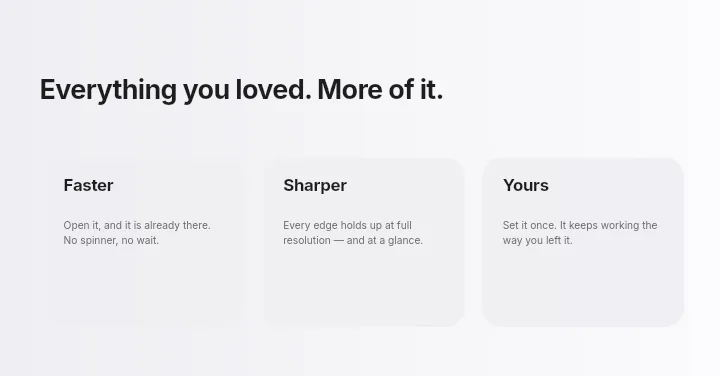
Product Launches
Feature Trio for three headline improvements.
Customer Results
A case-study figure with the client's logo.
Company Events
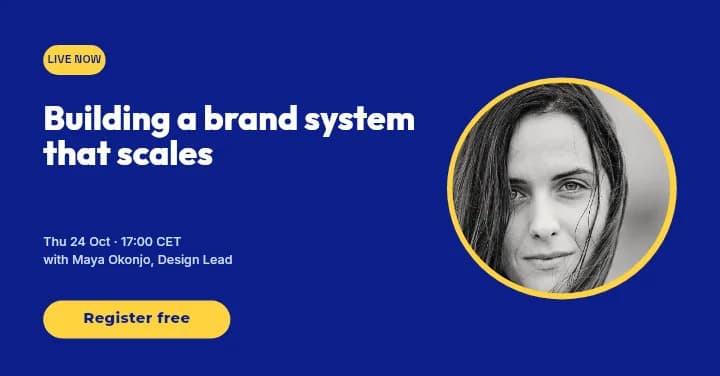
Conference stands, webinars, and team offsites.
Or just ask
Describe the edit in your own words
Type what you want changed and the assistant does it on the canvas — each step lands as a layer you can reopen, so nothing it does is baked in.
No edits yet.
Frequently Asked Questions
Related Tools
Guides worth reading
How to Make a Duotone Image in Figma (Building One From Blend Modes)
Figma has no duotone effect. You assemble one from a desaturated image and two blended rectangles — here is the layer stack, the order that matters, and an honest account of what it costs to maintain.
How to Make a Logo White in Photoshop (3 Methods, One of Them Non-Destructive)
Color Overlay, Lock Transparent Pixels, and why Hue/Saturation is the wrong tool even though Lightness looks like it works — plus the fringe that makes a white logo look dirty on a dark background, and how to remove it.
How to Replace a Color in Canva (What's Possible on Elements, and What Isn't on Uploads)
Canva can swap colors on vector elements one swatch at a time. On an uploaded photo or PNG there is no per-color control at all — here is the full picture, including the Duotone approximation and its limits.
Keep Your Company Page Looking Like One Brand
Hiring, launch, and news layouts at 1200×627, editable by anyone on the team.