Facebook Templates Sized for Every Placement
Posts, stories, page covers, and square ads for a Facebook page, each on the canvas that placement needs. Choose a layout, rewrite it, recolour it, and download.
Free preview · No signup · ~10 seconds
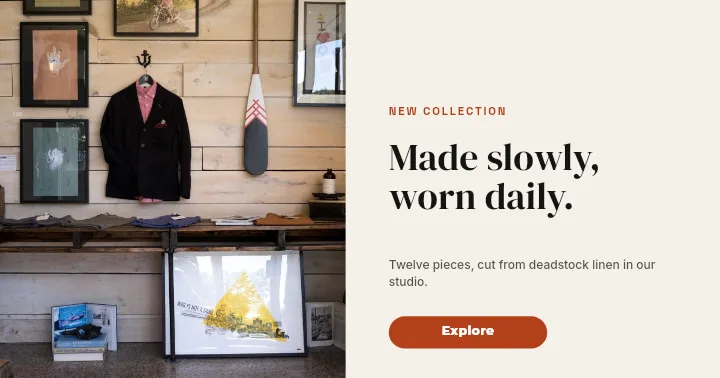
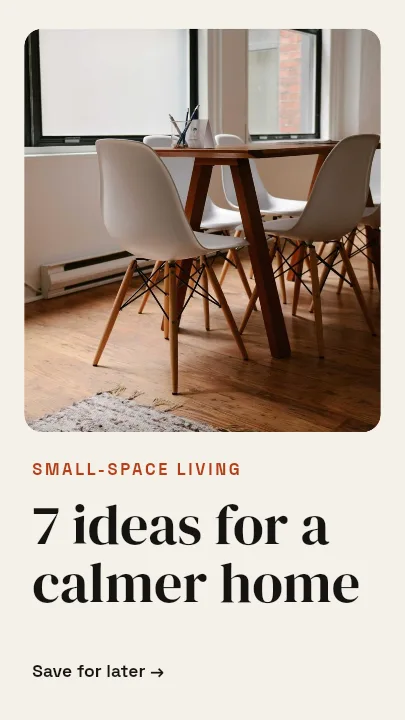


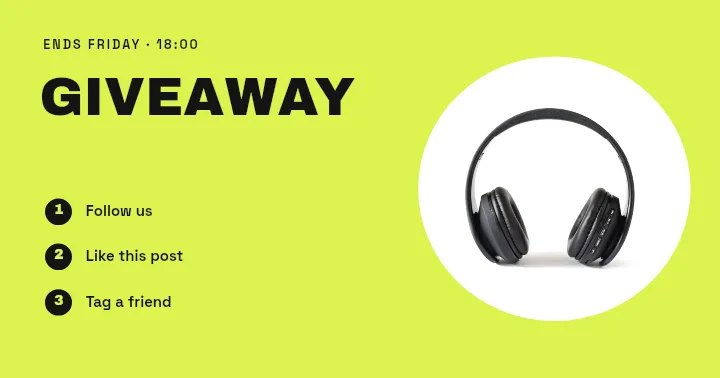

Facebook Templates Sized for Every Placement — in the editor
The real editor, start to finish — no signup needed to try it yourself.
Free preview · No signup · ~10 seconds
Built Around Where Facebook Shows Your Image
Four placements, four shapes
A page cover is wide (1640×624 in the app), a feed post is landscape (1200×630), a story is full-height (1080×1920), and an ad is square (1080×1080). The template list changes with the placement so the layout always fits the frame it will live in.
Nothing is flattened
Headlines, logos, product photos, and colour blocks stay separate layers. Change the offer on Monday's post and reuse the same layout for Friday without starting again.
Less text reads better
Facebook no longer rejects image-heavy text outright, but Meta still advises keeping words on an image short. The layouts put one headline and a supporting line on the image and leave the details for the caption.
Page, group, or business
The same set serves a local business page, a community group, or a brand running paid campaigns. Swap the colours to your own and the layouts stop looking like templates.
Facebook Canvas Sizes in the App
Feed Post
1200 × 630
Landscape, the same shape Facebook uses for link previews.
Story
1080 × 1920
Keep the top and bottom 250px free of text; the interface sits there.
Page Cover
1640 × 624
Mobile trims the sides, so centre the important content.
Ad (Square)
1080 × 1080
A 1:1 creative works across the Facebook and Instagram feeds.
How to Design With a Facebook Template
Open the Facebook templates
The button opens Create on the Facebook formats. Choose post, story, cover, or ad, then select a template or a blank canvas.
Make it your page
Type over the placeholder text, drop in your photos and logo, and switch the palette to your brand colours. Each piece is an editable layer.
Fine-tune the composition
Move and resize layers until the focal point lands where Facebook will show it, and hide anything you do not need.
Download and upload
Check a free low-resolution preview, then export the full-resolution image for your page or ad.
Where Facebook Templates Earn Their Keep
Local Business Pages
Opening hours, new menu items, and seasonal offers in a consistent style.
Paid Campaigns
Square ad creatives with one clear offer and space for a product shot.
Page Covers
A wide header that frames the page and changes with each campaign.
Event Promotion
Event Night and Webinar layouts for the post, the story, and the cover.
Or just ask
Describe the edit in your own words
Type what you want changed and the assistant does it on the canvas — each step lands as a layer you can reopen, so nothing it does is baked in.
No edits yet.
Frequently Asked Questions
Related Tools
Guides worth reading
How to Make a Duotone Image in Figma (Building One From Blend Modes)
Figma has no duotone effect. You assemble one from a desaturated image and two blended rectangles — here is the layer stack, the order that matters, and an honest account of what it costs to maintain.
How to Make a Logo White in Photoshop (3 Methods, One of Them Non-Destructive)
Color Overlay, Lock Transparent Pixels, and why Hue/Saturation is the wrong tool even though Lightness looks like it works — plus the fringe that makes a white logo look dirty on a dark background, and how to remove it.
How to Replace a Color in Canva (What's Possible on Elements, and What Isn't on Uploads)
Canva can swap colors on vector elements one swatch at a time. On an uploaded photo or PNG there is no per-color control at all — here is the full picture, including the Duotone approximation and its limits.
Give Your Facebook Page a Consistent Look
Posts, stories, covers, and ads from one set of layouts, each sized for its placement.