Reel Covers That Tidy Up Your Grid
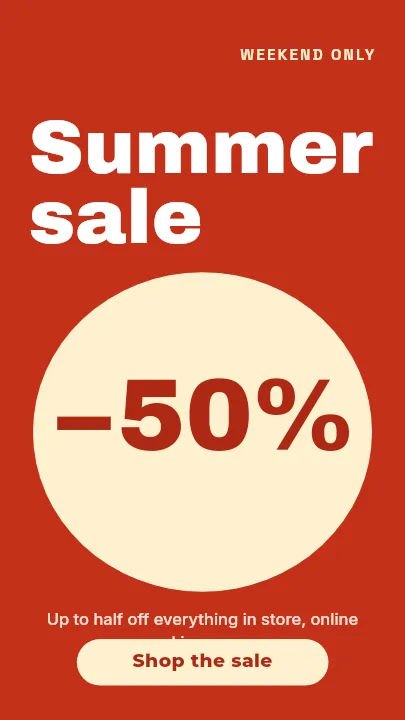
A designed cover instead of a random video frame. Templates at 1080×1920 with the title placed where the profile grid will still show it.
Free preview · No signup · ~10 seconds


Reel Covers That Tidy Up Your Grid — in the editor
The real editor, start to finish — no signup needed to try it yourself.
Free preview · No signup · ~10 seconds
The Cover Is What Stays on Your Profile
Grid crop first
A reel plays at 9:16, but in your profile grid Instagram shows only a centre section of the cover. Titles and faces placed in the middle third remain visible in both places.
Covers that name the video
A frame grabbed from the video rarely says what the reel is about. A cover with a short title tells a profile visitor which reel to open.
Series that look like series
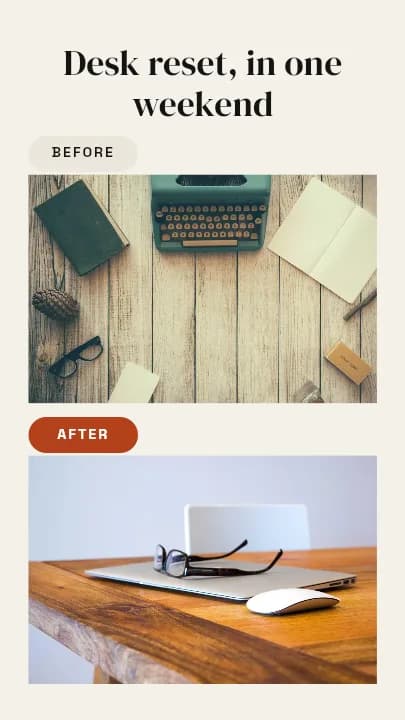
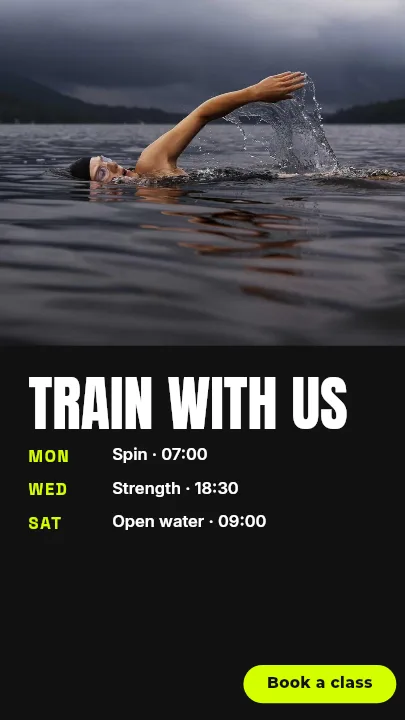
Use one layout for every episode, such as Class Schedule for a weekly workout or Before & After for transformations, and change only the title and photo.
Change anything
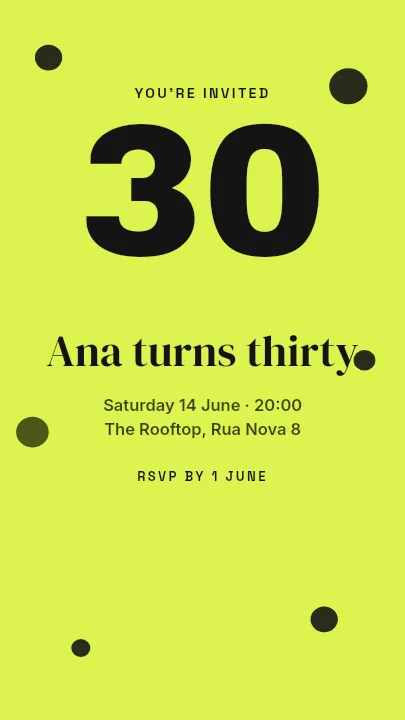
Every part of the cover is an editable layer, from the background colour to the number badge. Recolour a template to match the reel's mood.
Reel Cover Sizes
Reel Cover
1080 × 1920
Upload at the reel's own 9:16 shape.
Grid Preview Area
1080 × 1440
Roughly what survives in a 3:4 profile tile; centre your title within it.
TikTok Video Cover
1080 × 1920
Same canvas, so one design can serve both.
How to Make an Instagram Reel Cover
Open the reel cover templates
The button opens Create on Instagram Reel Cover templates at 1080×1920. Choose one, or start Blank.
Title the reel
Retype the headline with what the reel is about, add a still from the video or a photo, and set the colours.
Centre the essentials
Move the title and main subject into the middle of the frame so the profile grid crop keeps them.
Download and attach
Preview free at low resolution, export the full-resolution cover, and add it from your camera roll when you edit the reel cover in Instagram.
Reels That Benefit From a Cover
Tutorial Series
Numbered episodes people can find again in your grid.
Fitness Content
Workout names and durations visible before playing.
Product Demos
The product name on the cover, not a blurry mid-motion frame.
Giveaways
A cover that makes the prize obvious at a glance.
Or just ask
Describe the edit in your own words
Type what you want changed and the assistant does it on the canvas — each step lands as a layer you can reopen, so nothing it does is baked in.
No edits yet.
Frequently Asked Questions
Related Tools
Guides worth reading
How to Make a Duotone Image in Figma (Building One From Blend Modes)
Figma has no duotone effect. You assemble one from a desaturated image and two blended rectangles — here is the layer stack, the order that matters, and an honest account of what it costs to maintain.
How to Make a Logo White in Photoshop (3 Methods, One of Them Non-Destructive)
Color Overlay, Lock Transparent Pixels, and why Hue/Saturation is the wrong tool even though Lightness looks like it works — plus the fringe that makes a white logo look dirty on a dark background, and how to remove it.
How to Replace a Color in Canva (What's Possible on Elements, and What Isn't on Uploads)
Canva can swap colors on vector elements one swatch at a time. On an uploaded photo or PNG there is no per-color control at all — here is the full picture, including the Duotone approximation and its limits.
Give Every Reel a Proper Cover
Titled 1080×1920 covers that still read after the grid crop.