Instagram Templates for Every Format
Square and portrait feed posts, stories, reel covers, and carousel slides, each on its true canvas size. Start from a layout, make it yours layer by layer, and download it ready to post.
Free preview · No signup · ~10 seconds
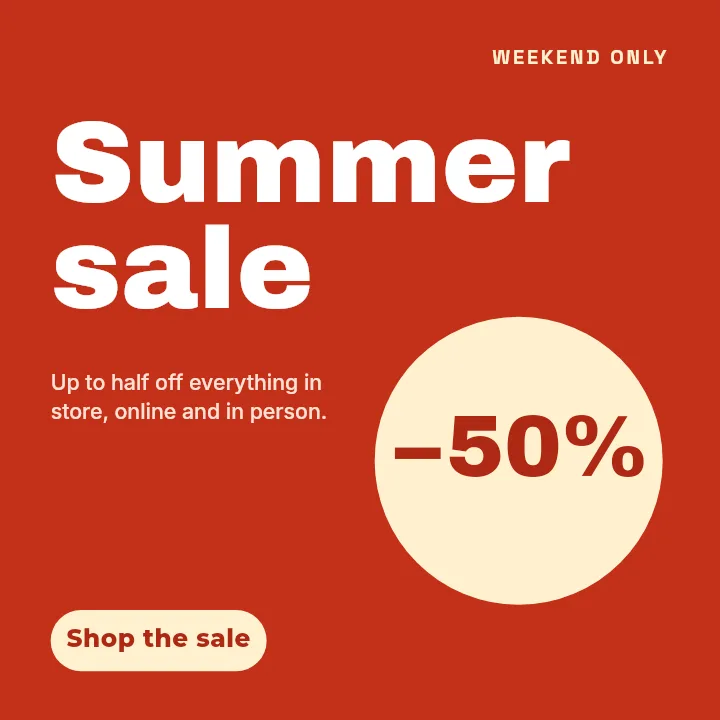
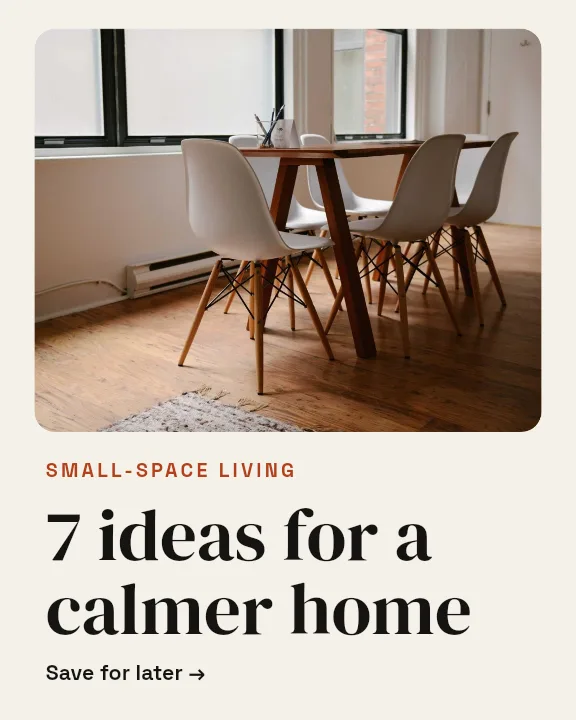
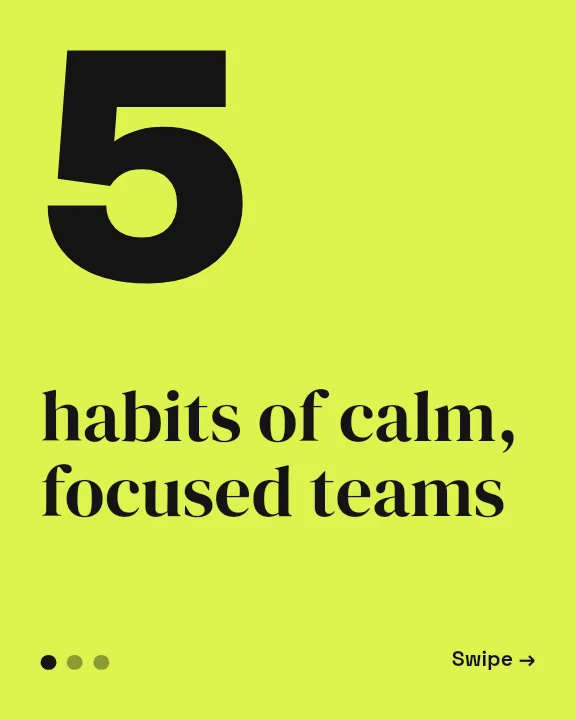

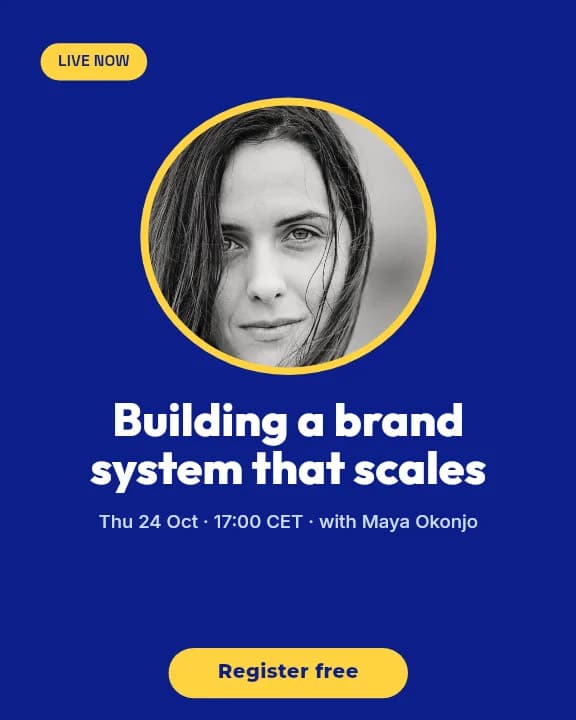
Instagram Templates for Every Format — in the editor
The real editor, start to finish — no signup needed to try it yourself.
Free preview · No signup · ~10 seconds
Five Instagram Formats, One Editor
Every format on its real canvas
The app builds each Instagram format at the pixel size Instagram expects: 1080×1080 for a square post, 1080×1350 for a portrait post and carousel slides, and 1080×1920 for stories and reel covers. Templates are drawn for those shapes, so nothing gets squashed when you switch.
Layouts you can take apart
A template is a starting arrangement, not a locked image. The headline, the photo frame, the badge, and the background are separate layers you can move, restyle, hide, or delete, so a Sale Badge post can become a launch announcement in a few edits.
Designed for how the feed is seen
Most people meet your post on a phone, a few centimetres wide. The layouts favour one big message, a clear focal image, and strong contrast, which is what survives at that size and after Instagram recompresses the upload.
A grid that looks like one brand
Use the same fonts and colours across a portrait post, the story that promotes it, and the reel cover that sits beside it in your profile grid. Matching formats from one template family keeps the account looking planned rather than assembled.
Instagram Canvas Sizes in the App
Square Post
1080 × 1080
Even grid tiles and product shots. The safest crop for shared content.
Portrait Post
1080 × 1350
The tallest ratio the feed shows in full, so it holds attention longest.
Story
1080 × 1920
Full screen. Keep roughly 250px clear at the top and bottom for the app interface.
Reel Cover
1080 × 1920
The grid shows a trimmed centre section, so the title belongs mid-frame.
Carousel Slide
1080 × 1350
Every slide shares the first slide's ratio, so design them all at this size.
How to Use an Instagram Template
Open the Instagram templates
The button opens Create with the Instagram formats already selected. Choose post, portrait post, story, reel cover, or carousel, then pick a template or start from Blank.
Replace the content
Click any text to retype it, swap the placeholder photo for your own, and change colours to match your brand. Every element is its own editable layer.
Adjust the layout
Drag, resize, and rotate layers, or reorder them in the layer tree so a photo sits behind the headline instead of over it.
Download for Instagram
Grab a free low-resolution preview to check on your phone, then export the full-resolution file to upload.
What Instagram Accounts Make With Them
Shop Promotions
Discount and drop announcements built on layouts like Sale Badge or Giveaway.
Story Sequences
Full-height frames for behind-the-scenes updates, polls prompts, and countdowns.
Educational Carousels
Tips List and Quote layouts for posts people save and come back to.
Reel Covers
Titled covers so your reels read as a series in the profile grid.
Or just ask
Describe the edit in your own words
Type what you want changed and the assistant does it on the canvas — each step lands as a layer you can reopen, so nothing it does is baked in.
No edits yet.
Frequently Asked Questions
Related Tools
Guides worth reading
How to Make a Duotone Image in Figma (Building One From Blend Modes)
Figma has no duotone effect. You assemble one from a desaturated image and two blended rectangles — here is the layer stack, the order that matters, and an honest account of what it costs to maintain.
How to Make a Logo White in Photoshop (3 Methods, One of Them Non-Destructive)
Color Overlay, Lock Transparent Pixels, and why Hue/Saturation is the wrong tool even though Lightness looks like it works — plus the fringe that makes a white logo look dirty on a dark background, and how to remove it.
How to Replace a Color in Canva (What's Possible on Elements, and What Isn't on Uploads)
Canva can swap colors on vector elements one swatch at a time. On an uploaded photo or PNG there is no per-color control at all — here is the full picture, including the Duotone approximation and its limits.
Pick an Instagram Layout and Make It Yours
Every Instagram format, on its real canvas, with layouts you can rework layer by layer. Free to browse and design.