LinkedIn Ads for B2B Campaigns
Single-image sponsored content at 1200×627 for webinars, gated content, and demos. Start from a layout, put in your offer, and make test variants.
Free preview · No signup · ~10 seconds
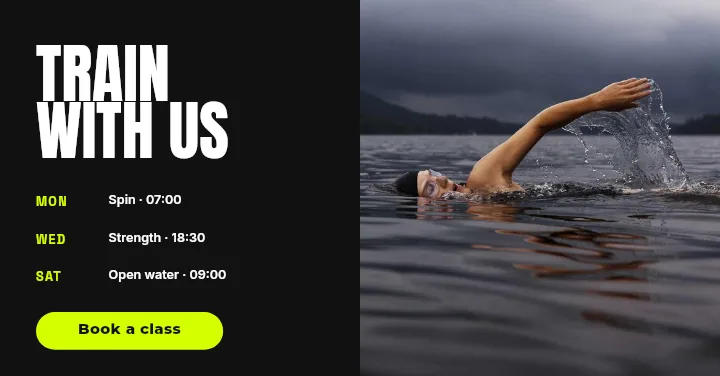
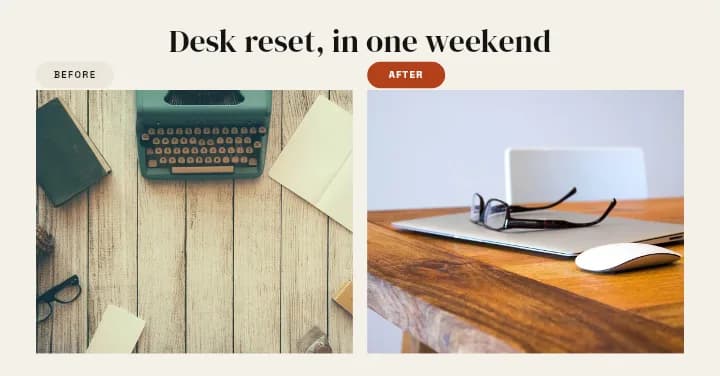
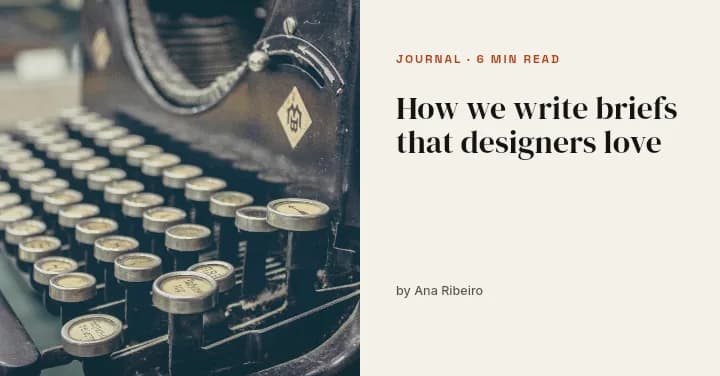
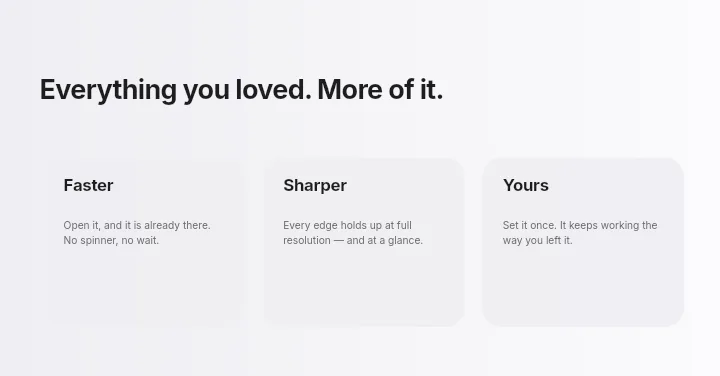
LinkedIn Ads for B2B Campaigns — in the editor
The real editor, start to finish — no signup needed to try it yourself.
Free preview · No signup · ~10 seconds
Ads for a Professional Audience
The standard sponsored size
LinkedIn recommends 1200×627 for single-image ads, the same landscape shape as an organic post. Your ad sits in the feed looking like content rather than a banner.
Offer-first layouts
Webinar, Giveaway, and Before & After put the value of the offer up front: the topic, the date, or the result, with space for a speaker photo or product screenshot.
Cheap to iterate
B2B clicks are expensive, so testing matters. Change the headline layer or swap the image and export a second creative without touching the rest.
Readable at feed size
The ad headline and intro text appear around the image, so the image needs only a short hook in large type that reads on a phone.
LinkedIn Ad Image Shapes
Single-Image Ad (Landscape)
1200 × 627
The app's LinkedIn Ad canvas and LinkedIn's recommended size.
Single-Image Ad (Square)
1200 × 1200
Accepted by LinkedIn; set it as a custom size.
How to Make a LinkedIn Ad
Open the ad templates
The button opens Create on LinkedIn Ad templates at 1200×627. Pick a layout or a blank canvas.
State the offer
Write the hook, add the event date or product screenshot, place your logo, and set your colours.
Create a test version
Change one layer, such as the headline or the image, and export again for an A/B test.
Download for Campaign Manager
Check a free low-resolution preview, then export the full-resolution images and upload them in LinkedIn Campaign Manager.
LinkedIn Campaigns You Can Design
Webinar Registrations
Topic, date, and speaker in one clear image.
Gated Content
Reports and guides promoted with a cover preview.
Demo Requests
A product screenshot with one benefit headline.
Employer Branding
Recruitment campaigns aimed at a specific role or seniority.
Or just ask
Describe the edit in your own words
Type what you want changed and the assistant does it on the canvas — each step lands as a layer you can reopen, so nothing it does is baked in.
No edits yet.
Frequently Asked Questions
Related Tools
Guides worth reading
How to Make a Duotone Image in Figma (Building One From Blend Modes)
Figma has no duotone effect. You assemble one from a desaturated image and two blended rectangles — here is the layer stack, the order that matters, and an honest account of what it costs to maintain.
How to Make a Logo White in Photoshop (3 Methods, One of Them Non-Destructive)
Color Overlay, Lock Transparent Pixels, and why Hue/Saturation is the wrong tool even though Lightness looks like it works — plus the fringe that makes a white logo look dirty on a dark background, and how to remove it.
How to Replace a Color in Canva (What's Possible on Elements, and What Isn't on Uploads)
Canva can swap colors on vector elements one swatch at a time. On an uploaded photo or PNG there is no per-color control at all — here is the full picture, including the Duotone approximation and its limits.
Design the Creative for Your Next Campaign
B2B ad layouts at 1200×627, with each element editable for testing.